TL;DR

Get home appliances delivered free with Prime
- Fast, free delivery on millions of items
- Prime Video, Amazon Music and more included
- Member-only deals all year
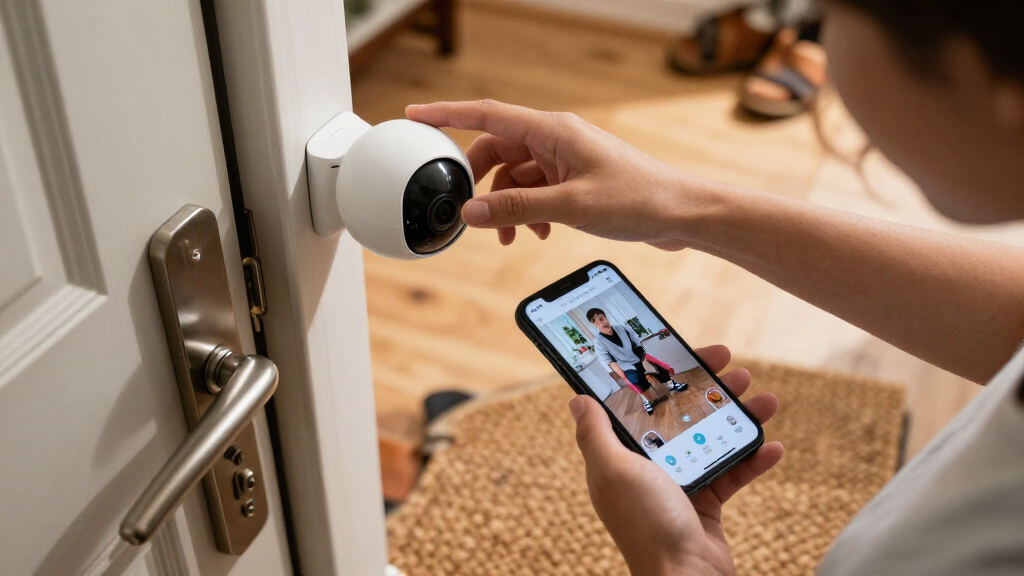
Smart home security cameras can alert you to activity and save video, but useful footage depends on lighting, camera angle, connection, storage, and settings as much as resolution. If the Ring Pan-Tilt Indoor Camera is difficult to find, the Tapo C100, Arlo Pro 2K HDR, and LaView indoor cameras offer different mixes of continuous power, battery flexibility, and image detail. Check recording terms, privacy controls, and placement before choosing.
A camera can show you the whole front room and still fail to show who walked through it. That gap between seeing activity and getting useful footage is what makes choosing smart home security cameras more than a resolution comparison.
If you were looking at the Ring Pan-Tilt Indoor Camera and it now seems difficult to find, you have several alternatives to weigh. The TP-Link Tapo C100 is a continuously powered 1080p indoor camera; Arlo’s Pro 2K HDR cameras offer battery power and higher stated resolution; LaView’s indoor 1080p cameras add another wired option. Product listings and specifications can change, so check the current details before buying.
This guide explains how to compare those options, choose a field of view and recording setup, and place cameras with privacy in mind. The goal is simple: a camera that fits your home and records the moments you actually need to see.
A wider field of view covers more space, but people and details appear smaller farther from the lens.
The Tapo C100 is listed as a continuously powered 1080p camera; Arlo’s compared Pro models use rechargeable batteries and list 2K HDR.
Motion alerts do not guarantee complete footage; check event triggers, clip length, retention, and offline behavior.
Test the camera’s saved clips at its intended location in daylight and at night, including Wi-Fi and backlighting.
Use a unique account password, enable multifactor authentication when available, and review access and privacy settings.
Choose a camera for the footage you need to identify
Smart home security cameras capture useful footage when resolution, lighting, distance, lens quality, and camera angle work together. A higher number of pixels alone cannot guarantee that you will recognize a face or read a label. Think of image quality as a chain: one weak link, such as a bright window behind the subject, can spoil the clip.
Resolution tells you how much image detail a camera can record under suitable conditions. The Ring Pan-Tilt model in the source comparison and the Tapo C100 are listed at 1080p, while the Arlo Pro models are listed at 2K HDR. The LaView indoor cameras are also listed at 1080p. That makes Arlo worth examining if extra image detail matters, but it does not prove that every Arlo clip will be clearer in every room.
Field of view matters just as much. A wide view can cover more of an open-plan room, which can help you see whether a door opened while you were away. But a person near the far edge may appear smaller than one who passes close to the camera. If you need to identify someone at an entrance, aim the camera at the approach rather than trying to capture the entire hallway and living room in one shot.
Imagine a camera mounted high in a corner, pointed toward a sunny patio door. The room looks expansive in the live view, but a visitor crossing in front of the bright glass may appear dark. Angle the camera so the entrance stays in view without aiming directly at the strongest light, and test a sample clip at the time of day you care about. The number on the box is only the opening scene; your room decides how the story looks.
Night vision, HDR, compression, and motion blur also affect evidence. Color night vision can help preserve visual clues in some conditions, but it cannot create daylight in a pitch-black room. HDR can handle a mix of bright and dark areas, but check real sample footage and product documentation rather than assuming the label guarantees a result. According to the product comparison, the Ring camera included color night vision; compare current model specifications carefully because features vary by product and software version [1].
Products Worth Considering

Ring Floodlight Cam Wired Plus, 1080p HD Outdoor Security Camera with Motion-Activated Floodlights, Black

Ring Floodlight Cam 4K Pro (2nd Gen), Wired Outdoor Security Camera, Black

eufy Security Floodlight Camera E340 with AC Cable, Dual-Lens
As an affiliate, we earn on qualifying purchases.
Compare indoor alternatives by power, connection, and control
If the Ring Pan-Tilt Indoor Camera is not a practical option for you, compare alternatives by how they are powered, the image they record, and the way you plan to use them. The Tapo C100 and LaView are indoor 1080p choices in the supplied comparison; Arlo’s Pro models list 2K HDR and rechargeable, swappable batteries. Those differences affect where you can mount a camera and how often you will need to handle it.
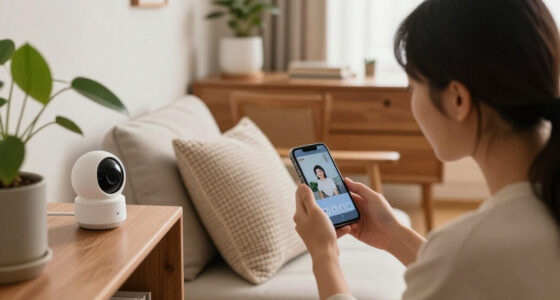
The Tapo C100 is powered by a DC adapter, so it can run continuously where you have an outlet and a tidy route for its cable. The source comparison lists 2.4 GHz Wi-Fi and two-way audio, plus a built-in siren. That might suit a small room where you want regular power and a simple way to talk through the camera. Its listed dimensions are about 2.66 × 2.15 × 3.89 inches, which can help when you are checking shelf space.
Arlo’s 2K HDR Pro cameras use rechargeable, swappable batteries and dual-band Wi-Fi according to the supplied specifications. Battery power can help when there is no convenient outlet near a window or entryway. It also adds a chore: frequent motion events, cold conditions, and higher-resolution settings can shorten battery life. LaView’s listed indoor cameras provide 1080p and two-way audio with noise cancellation, but the source does not specify their power arrangement, so verify that detail before planning a mounting spot.
| Option | Listed video and connection | Power and useful fit |
|---|---|---|
| TP-Link Tapo C100 | 1080p; 2.4 GHz Wi-Fi; two-way audio | DC adapter; useful near a stable outlet |
| Arlo Pro 2K HDR | 2K HDR; dual-band Wi-Fi; two-way audio | Rechargeable, swappable battery; useful where cable routing is awkward |
| LaView indoor cameras | 1080p; 2.4 GHz Wi-Fi; two-way audio with noise cancellation | Power details not specified in the source comparison; verify before choosing |
These are specification comparisons, not a promise that every kit or listing has identical accessories. For example, a four-camera kit may make sense if you need to cover several rooms, while a single camera could be enough to watch a hallway. Check current model numbers, included adapters, app requirements, and recording terms; product names can cover versions with different capabilities [1].
Check what the camera records before you count on an alert
A motion alert is not the same as a complete recording. Some cameras save a short clip after movement; others can support continuous recording or longer histories with particular storage arrangements. Before relying on a camera, find out what triggers recording, how long clips last, how long they remain available, and what features stop working when the internet or subscription does.
Consider a delivery that arrives while you are in a meeting. A notification may tell you that motion occurred, but a clip that starts after the courier placed the parcel could miss the useful moment. Check whether the camera records before an event, how its motion zones work, and whether sensitivity can be adjusted. A camera aimed at a street can produce a steady stream of passing-car alerts; a tighter zone around the porch may make the notification list easier to use.
Detection tools increasingly label activity as a person, pet, vehicle, or package, and some newer services can search clips with descriptions. These tools can reduce nuisance alerts, but their results depend on lighting, angle, and surroundings. A tree shadow moving across the floor or an insect near the lens can still trigger an alert. Test settings during ordinary activity at home before treating a label as proof of what happened [2].
Storage creates another tradeoff. Cloud recording can make clips easy to view remotely, but often depends on internet service and may require a recurring plan for recording history or advanced detection. Local storage, such as a memory card or hub, can reduce reliance on a cloud plan; however, the recording device could be damaged or taken along with the camera. Some systems offer both approaches, but confirm whether they can record during an internet outage.
Write down the situation you want the camera to document. If you mainly want to know when a child enters a room, event alerts may do the job. If you need to review a whole evening after a concern, ask whether continuous recording is supported and how much footage the chosen plan or storage device retains. The recording policy matters as much as the live view.
Place your camera where its view and Wi-Fi both work
Good placement gives the lens a clear view and the camera a dependable connection. A camera is only useful when it can see the area you care about and send or save its footage reliably. Check the mounting point for power, Wi-Fi signal, glare, and privacy before you settle on a permanent position.
Start with a practical target: an entrance, a shared hallway, or a room where you need to check on a pet. Put the camera close enough to capture meaningful detail, but avoid aiming it through a window if reflections or glare obscure the image. If your only outlet is across the room, the cable for a wired camera may be visible or create a trip hazard; a battery model can simplify that setup, though you will need to recharge it.
For example, say you want to watch the front door from a living room shelf. A shelf opposite a bright window may wash out faces at noon. Move the camera to a side angle, check the live view after sunset, and walk through the frame yourself. If you can see your face clearly in the saved clip, you have a better test than simply looking at the live feed.
Wi-Fi can fail in the exact corner where a camera looks best. Thick walls, distance from the router, and interference can weaken the signal. Test the connection at the camera’s intended location, not only beside the router, and check upload capacity if several cameras will send video at once. The actual bandwidth depends on resolution, frame rate, recording behavior, and streaming; consult the manufacturer’s estimates for the specific model [2].
For outdoor coverage, choose equipment rated for the weather and suitable for the mounting surface. Do not run cables through a roof or alter electrical wiring as a casual camera project. If installation involves electrical work, roof penetrations, or structural changes, use a licensed professional and follow local permit and safety requirements. Keep the camera’s view limited to your own property where possible, and check local rules for filming shared spaces or recording audio.
Protect footage with privacy settings and a secure account
A camera’s security depends on both the device and the account that opens its footage. Even a camera with strong security features can expose private video if someone reuses a weak password or shares account access carelessly. Treat the app like a key to your front room: only give access to people who need it, and remove access when that changes.
Start with a unique password for the camera account. Turn on multifactor authentication when the service offers it, and install firmware and app updates. Review shared users, connected smart-home services, and alert settings every few months. These small checks matter in a home where a partner, babysitter, or former housemate may have been given access at one point.
Read the privacy controls before you mount an indoor camera. Some products offer a physical cover or privacy shutter; others let you disable video or audio in software. A camera in a living room can be useful while you are away, yet feel intrusive when guests are over. A visible cover or a schedule that switches the camera off when you are home can make the device easier to live with.
Check what the company says about encryption, data retention, and use of footage. Ask whether clips are shared or used to improve services, who can access them, and how to delete recordings. Policies and options differ, and they can change over time. A product’s privacy promise is only useful if you understand which settings apply to your account and which features require a paid plan [2].
Imagine a camera pointed toward a child’s play area. You might want alerts while the house is empty, but not audio recording all day. Set clear household rules, choose the narrowest view that serves the purpose, and tell visitors when cameras are operating. Smart home security works best when the people in the home understand what is being recorded.
Set up your first camera in five practical steps
A short setup routine can reveal problems before a camera becomes part of your security plan. Pick one specific job for the camera, install it temporarily, and test its footage and alerts under normal conditions. You are checking a working system, not just a successful app setup.
- Name the event you want to capture. Choose a clear goal, such as seeing who enters the back door or checking whether a pet is home.
- Match the camera to the spot. Compare wired power with battery convenience, confirm Wi-Fi bands and signal, and check whether the camera is rated for indoor or outdoor use.
- Set a useful angle. Aim toward the approach or activity area, avoid strong backlighting, and limit views of neighbors or private spaces.
- Choose detection and storage. Set motion zones, review event versus continuous recording, and find out how long footage remains available and whether a plan is needed.
- Test and secure it. Walk through the frame in daylight and at night, review saved clips, adjust alerts, use a unique password, and enable multifactor authentication where available.
Try the routine in a familiar setting. If you are using a Tapo C100 near a hallway outlet, check whether its 2.4 GHz connection remains stable with the door closed. If you are testing a battery-powered Arlo camera near a garage, make sure the mounting point still gets a strong signal and that the camera can capture a face at the distance you need.
Do not judge a camera only by the first live image. Trigger a motion event, then open the saved clip and see whether it starts early enough, stays clear, and sends the alert promptly. Repeat the test after changing the angle or sensitivity. A five-minute walk-through can reveal a missed doorway or a flood of unnecessary notifications before you depend on the camera during a real event.
Finally, check how the system behaves when internet access drops, if local recording matters to you. Remote viewing and cloud features generally need an internet connection, while some models may continue saving locally. The exact behavior varies, so verify it in the documentation rather than assuming a camera keeps recording offline [2].
Know what a camera can and cannot do for home security
A security camera documents activity and can alert you; it does not physically stop someone from entering. That distinction helps you build a sensible plan. A camera may help you check on a door, collect a useful clip, or contact a neighbor, but the camera itself cannot secure a latch or respond to an emergency.
Picture a side gate that is easy to open. A camera pointed at the gate might show when it moves, but a working lock, lighting, and a clear view from the house address other parts of the problem. A camera becomes more useful when it fits into a wider setup, perhaps with a door sensor, alarm, or smart light. Compatibility varies, and a camera that appears in a smart-home app may not share every detection feature with the other devices.
Smart-home platforms such as Apple Home, Amazon Alexa, or Google Home can make it easier to view compatible cameras on a display or include them in a routine. Still, platform support does not mean every feature carries across. For instance, a camera might show a live stream on a smart display while its advanced person detection remains available only in the manufacturer’s app. Confirm the exact model and feature support before you build a routine around it [2].
Power and internet outages also change what a camera can do. A battery model may keep operating during a home power cut, but it may lose connectivity if the router loses power. Without internet, remote viewing and cloud uploads commonly stop; local recording may continue on some devices. If outage coverage matters, check whether the camera, router, and storage device each have backup power or local recording support.
Use a camera as one layer in a home plan. Choose a view that answers a real question, keep the account secure, and pair alerts with sensible physical measures where needed. The best system is not the one that promises to watch everything; it is the one that helps you respond to the event you care about.
Use these key facts to make a confident camera choice
The right camera is the one whose recording, power, and privacy setup match your home. A spec sheet can narrow the options, but the final choice should reflect what you want to see, where the camera will sit, and how you will retrieve clips. Keep the tradeoffs visible instead of choosing by a single headline feature.
- Need continuous power indoors? The Tapo C100 is listed with a DC adapter, which suits a camera near an outlet.
- Need flexible mounting? Arlo’s Pro cameras use rechargeable, swappable batteries in the supplied comparison; plan for charging and check actual battery performance.
- Need more stated resolution? Arlo’s 2K HDR specification gives you more pixels on paper, but test distance, light, angle, and compression before counting on identification.
- Need several room views? Multi-camera kits may cover more locations, but also add setup work, network demand, and more privacy settings to manage.
- Need fewer unnecessary alerts? Set motion zones and test classification features; person or pet labels can still be wrong in difficult conditions.
For a small apartment hallway, a continuously powered 1080p camera may be enough if it gives a clear view of the entrance and retains clips long enough. For a detached garage with no convenient outlet, a battery camera may be easier to place, though the signal and charging schedule deserve attention. For a family room, a physical privacy control may matter more than adding another smart detection label.
Before purchase, verify the current model name and specifications, the included power accessories, storage options, subscription requirements, smart-home compatibility, and update support. These details can change across product generations and regions. Keep the core test in mind: can the camera capture the view you need, notify you in time, and preserve the footage under the conditions your home actually has?
Frequently Asked Questions
Do smart home security cameras always need a subscription?
No, not always. Some cameras provide live viewing and basic alerts without a paid plan, while cloud recording, longer clip history, or advanced detection may require one. Check the current plan terms for the exact model and region before you buy.
Can a smart camera record without Wi-Fi?
Sometimes, if the model supports local storage. Remote viewing and cloud features generally need an internet connection, but some cameras can continue saving to a memory card or hub. Check what happens during an outage for the specific camera you are considering.
Are indoor security cameras safe from hackers?
No connected camera is risk-free. Choose a product with a clear update policy and suitable account security, use a unique password, and enable multifactor authentication when available. Limit shared access and review which apps or services can see your footage.
Where should I place an indoor camera?
Place it where it can see a useful entrance or activity area and maintain a reliable connection. Avoid aiming straight at bright windows, test the saved footage from the intended location, and keep the view away from private spaces or a neighbor’s home. Check local rules, especially if the camera records audio.
Will a 2K camera identify a face better than a 1080p camera?
Not automatically. A 2K image has more stated resolution, but lighting, distance, lens quality, compression, and camera angle all affect identification. Test sample footage from the actual mounting point before treating the extra resolution as proof of clearer evidence.
Can a camera tell people, pets, and vehicles apart?
Some cameras offer those labels, but classification can be wrong. Shadows, insects, weather, and poor lighting can trigger false alerts or confuse detection. Adjust motion zones and review clips during ordinary activity to learn how the feature behaves at your home.
Conclusion
Choose smart home security cameras by the moment you need them to capture. Check the view, power, connection, storage, and privacy controls together, then test a real clip before relying on alerts. A camera should make a useful part of your home easier to see, not simply add another glowing lens to the room.
Set it up carefully, keep its account secure, and let the footage answer a clear question. That is how a small camera earns its place at home.